
How to Create Custom Prompts
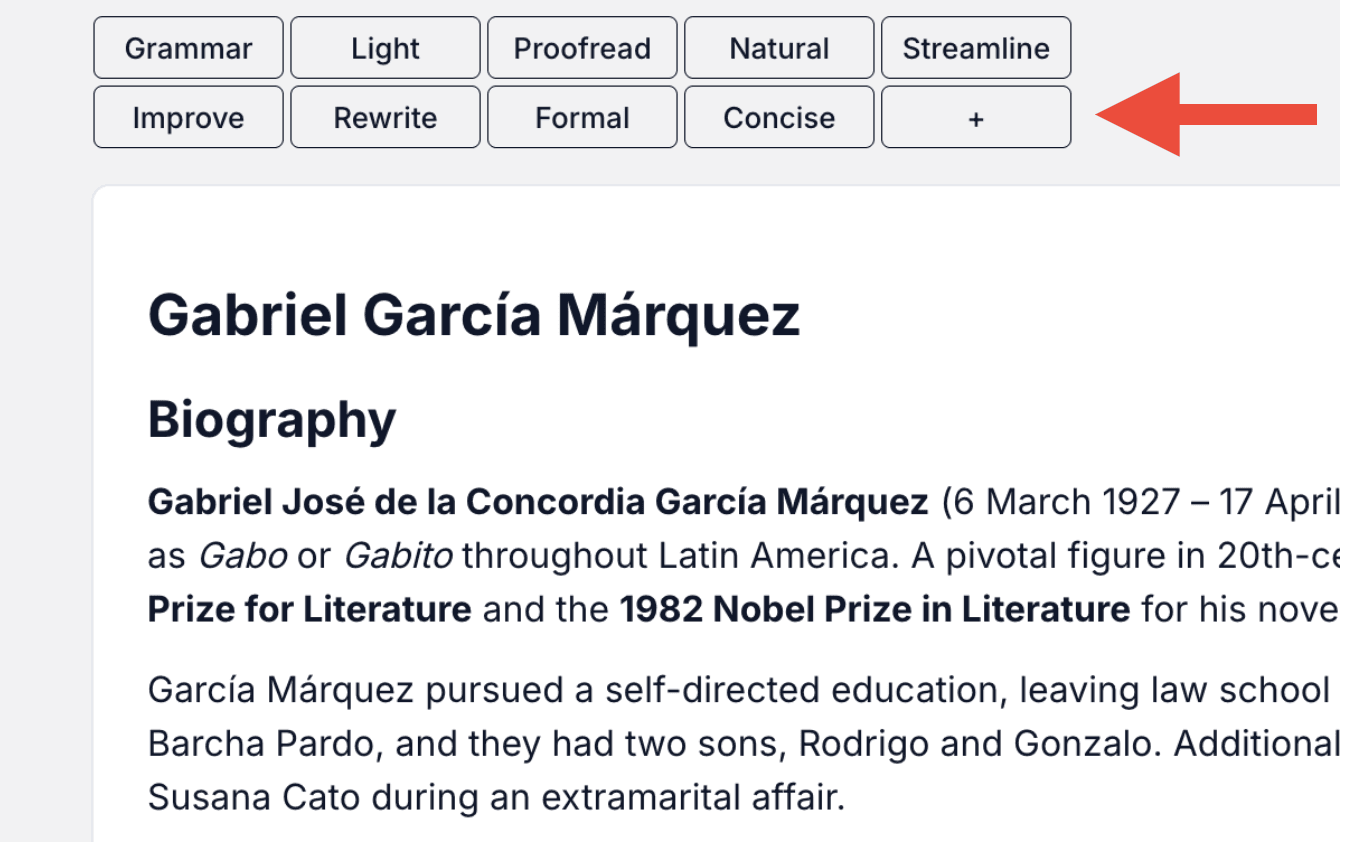
To manage your prompts and create custom ones, follow these steps:
- Click the "+" button in the prompt toolbar to open the prompts panel
Managing Default Prompts
Once the panel opens, you'll see two sections:

-
Default Prompts (Left Side)
- Click to select or deselect any default prompt
- Organized into categories:
- Light Editing (Grammar, Light, Proofread, Natural)
- Heavier Editing (Streamline, Strong, Improve, Polish, Rewrite)
- Change Tone (Academic, Formal, Casual, Speech)
- Regions and Standards (UK, MLA, Chicago, APA)
- Industry-specific (SEO, Social, Technical, Legal, Apply, Thesis)
-
Custom Prompts (Right Side)
- Shows your selected default prompts
- Create your own custom prompts here
Creating Custom Prompts
In the right panel:
- Click "+ Add Custom Prompt"
- Fill in:
- Label (maximum 10 characters)
- Instructions for how the prompt should modify text
- Click Save to add your custom prompt
See our guide for writing best prompts here.
Managing Your Selections
- Selected default prompts appear in the "Selected Default Prompts" section
- Remove any prompt by clicking the trash icon
- All selections and custom prompts are saved automatically to your account
Note
Your prompt selections and custom prompts will persist across sessions.